> For the complete documentation index, see [llms.txt](https://knowledge.flyability.com/llms.txt). Markdown versions of documentation pages are available by appending `.md` to page URLs; this page is available as [Markdown](https://knowledge.flyability.com/software/inspector/inspector-5/common-workflows/how-to-merge-flights.md).
# How to merge flights?
This article covers how to move flights into a single inspection and manually align them in Inspector. Use alignment and cropping tools to adjust point clouds for clearer visualization.
Start by opening your asset, selecting the relevant inspection, and accessing it to view the associated flights. If any flights are not under the same inspection, move them accordingly before proceeding with the merge. Refer to the instructions below for guidance on moving flights.
### **How to move flights?**
1\. From a flight to be aligned, select **Move** from the three dots menu in the flight list view:
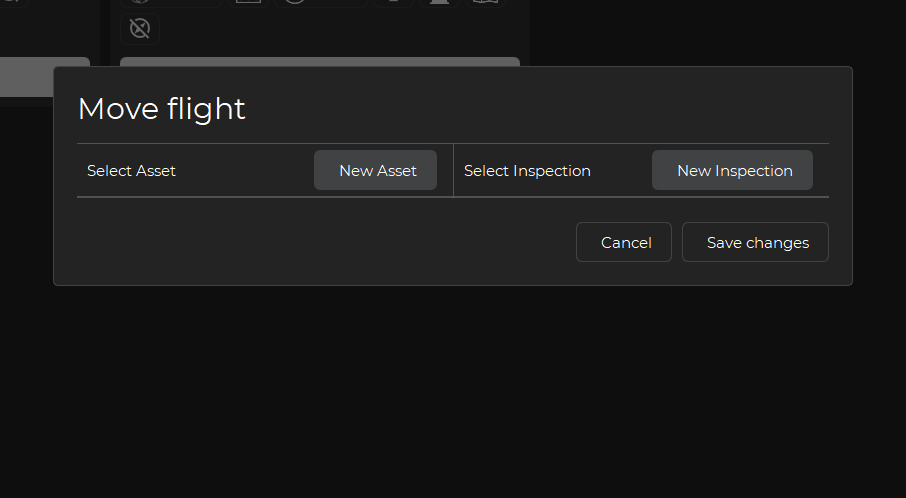
2\. select the destination inspection:
3\. Once all the flights are in the same inspection, you can align them manually from the Inspection view.
### **How to manually align flights?**
Several tools are available that will help with this process.
Select the Alignment tool in the **3D map top toolbar**. (see below)
Select the Manual alignment tool (Manually relocalize active flight) from the drop down menu.
You can now align one point cloud with another using the Axes (Blue - Green - Red). Grabbing a particular axis will move the cloud in its direction. Grabbing the curved bar between will swivel between those axes.
Some additional selections can assist in the job of alignment.
* Selecting the Flight icon in the right hand sidebar:
* will give access/visibility to the flights and ability to select the flight to move, and toggle aspects such as point cloud, trajectory, etc.
* the bold flight is the selected flight and the cloud that will be moved.
* Selecting the View settings drop down in the top tool bar will allow:
* The map slice tool can be helpful to clear distracting points making visual alignment easier.
* adjusting point size can be helpful as well.
Once the clouds have been aligned click the check in the Alignment tool.\
To discard select the “**X**”.
From the Inspection view containing the flights: (see above)
* Select the Show flights folder in the right sidebar. This will allow you to select the active flight to align as well as hide any extraneous information as you prefer.
* Select the Relocalization options tool in the top toolbar.
* Select Manually relocalize active flight. The active flight will be in bold.
* Use the axis handles to adjust the placement along the selected axis.
* If satisfied, select the check to accept. If not satisfied, select the x to discard.
{% hint style="info" %}
Alignment tips:
* The **Cropping options** can help focus on specific areas to assist visualizing alignments.
* Coloring the point clouds by flight can make it easier to differentiate between multiple point clouds
{% endhint %}
We also recommend consulting the [User manual](https://drive.google.com/file/d/1jnxJo40rzt2JstPYt3bP-5GKRluxU5l7/view) for more detailed information.
---
# Agent Instructions
This documentation is published with GitBook. GitBook is the documentation platform designed so that both humans and AI agents can read, navigate, and reason over technical content effectively. Learn more at gitbook.com.
## Querying This Documentation
If you need additional information that is not directly available in this page, you can query the documentation by asking a question.
Perform an HTTP GET request on the following URL with the `ask` and `goal` query parameters:
```
GET https://knowledge.flyability.com/software/inspector/inspector-5/common-workflows/how-to-merge-flights.md?ask=&goal=
```
`ask` is the immediate question: it should be specific, self-contained, and written in natural language.
`goal` is what the user is ultimately trying to achieve, the reason they need the answer. Sharing it helps GitBook give you a better, more relevant answer. A goal is most helpful when it describes the outcome the user wants rather than restating the question. For example, with `ask=how do I create an API token`, a goal like `automate deployments from our CI pipeline` lets GitBook tailor the answer to that use case.
The response will contain a direct answer to the question and relevant excerpts and sources from the documentation.
Use this mechanism when the answer is not explicitly present in the current page, you need clarification or additional context, or you want to retrieve related documentation sections.