> For the complete documentation index, see [llms.txt](https://knowledge.flyability.com/llms.txt). Markdown versions of documentation pages are available by appending `.md` to page URLs; this page is available as [Markdown](https://knowledge.flyability.com/software/inspector/inspector-5/software-quick-start-guide/asset-management-quick-start-guide.md).
# Asset Management - Quick Start Guide
Discover everything you need to know on how to get started with the asset management software extension
## Asset Management
Asset Management is an Elios 3 premium software extension that works across the latest Inspector 5 and Cockpit systems and provides users with an innovative way of organizing and analyzing their data. In order to benefit from this software extension, users will need to update Inspector and Cockpit to the latest versions (2024.02 or later) and purchase the premium software subscription (or have an active premium software update subscription).
You can learn more about Asset Management [here](https://www.flyability.com/asset-management).
#### **Premium vs free software subscription**
Inspector 5 and the latest update of Cockpit will have a free and a premium option available for users. While the free version will allow you to perform all the actions previously available on Cockpit and Inspector 4 (with some added functionalities), the premium version will incorporate the new asset management software extension developed by Flyability.
These updates will provide users with the following added features:
| |
Without Asset Management
|
With Asset Management
|
| ------------------------------------------------ | -------------------------------------------------------------------- | ----------------------------------------------------------------- |
| **Cockpit** | | |
| Flights organized by asset and by inspection | ✔ | ✔ |
| Automatic data merging during capture | ✘ | ✔ |
| POIs from previous flights shown in the Live Map | ✘ | ✔ |
| **Inspector** | | |
| Flights organized by asset and by inspection | ✔ | ✔ |
| Data visualization and reporting per flight | ✔ | ✔ |
| Data visualization and reporting per inspection | ✘ | ✔ |
| Manual data merging during post-processing | ✘ | ✔ |
If you are interested in purchasing the premium software subscription, please contact us at .
***
### Inspections with Asset Management
Inspection processes may look a little different following the activation of the asset management software. These are the steps you should follow when conducting an inspection with asset management:
1. Once Inspector 5 has been installed on your PC ([link](/software/inspector/inspector-5.md#download)) and Cockpit has been updated, turn on your Elios 3, connect Cockpit to the RC, and then wait for the Elios 3 to connect to Cockpit.
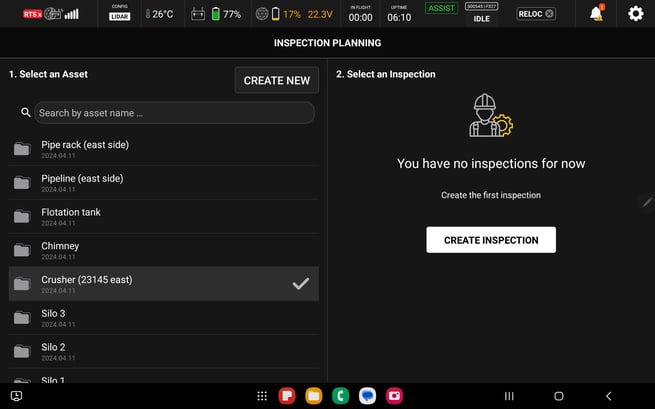
2. Now click on "Inspect". In the *inspection planning* panel that opens you will be asked to select a previously created asset or to create a new asset. This will allow you to store all the inspections you do in an asset, in a single folder and visualize POIs recorded in previous flights while inspecting. Select the desired asset.
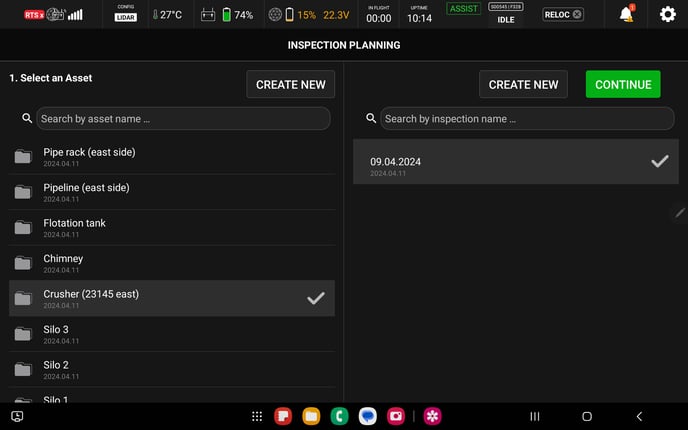
3. Once you have selected the asset you are inspecting, on the right side of the screen you will be able to continue a previous inspection (click on the inspection if you want to continue) or create a new inspection. An inspection will no longer be a single flight but rather a combination of different flights within an asset automatically merged together by the asset management software.
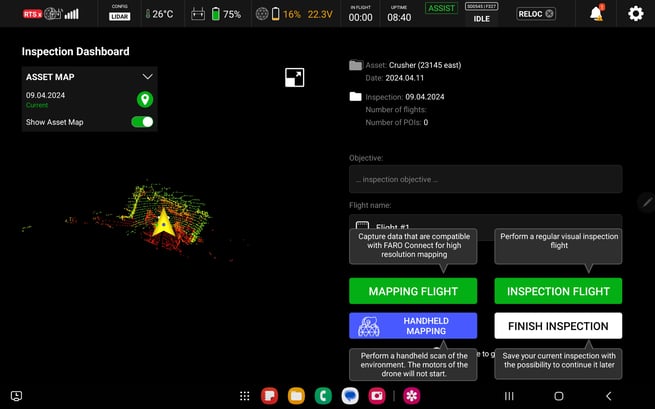
4. You will then be given the option to do a "mapping flight", an "inspection flight", or "handheld mapping":
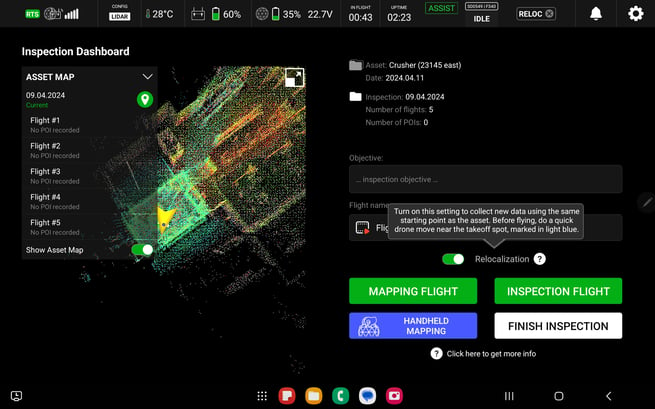
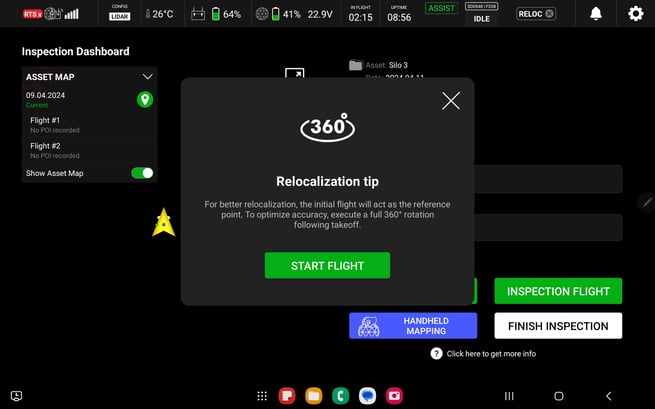
5. When conducting two or more flights in the same inspection, to allow the software to merge flights correctly please remember to *relocalize* the drone within the asset before each flight. The Elios 3 drone only uses LiDAR data (and not camera data) to relocalize itself within an asset.
\
To ensure a good *relocalization*, try to start your flight always from the same spot and make a 360° rotation after take-off. Ideally, the area highlighted in blue (like the one you can see above) should always be scanned at the beginning of each flight.
Watch this video to see how to conduct an asset management inspection:
{% embed url="" %}
***
####
### Data processing with Asset Management
Once you have completed your inspection you will want to download and process your data. To do so, open Inspector 5 on your PC, connect your Elios 3 to the PC, and import the data from the drone.
Find more information on Inspector 5 [here](https://www.flyability.com/inspector).
Watch this video to learn how to use asset management on Inspector 5:
{% embed url="" %}
***
### Tips and tricks for Asset Management
* Always capture a good scan of the environment close to the take-off point on the first flight in a new asset. This portion of the map will be used to relocalize the drone in the asset for subsequent flights (this part of the map is shown in blue in the inspection dashboard in Cockpit) and merge data more efficiently. For future flights try to always start within 3 meters of the previous take-off spots.
* When relocalizing, make sure to properly capture the environment around you before clicking on the *relocalize* button. To do so fly the drone within the area and perform a 360° turn, just as you would do in handheld mode.
* Please consider that only lidar scans are used in the relocalization workflow. Inspection or VIO cameras are not used.
* Avoid relocalizing in environments that may change often. If changes are too big, the relocalization process may fail.
* The relocalization process can always be skipped if users want to. Flights can be performed as before asset management and the data will still be stored under the selected folder for assets and inspections.
* All data can always be manually aligned in Inspector after import in the multi-flight viewer. This option is only available to premium users.
* A workspace is a static folder where Inspector stores data. Flight data like video and maps can be exported from the inspection view or accessed in Windows Explorer through the *view in Explorer* option in the action menu.
* Inspector 4 data won't be automatically available in Inspector 5 after the update. You can manually import your .efly projects in Inspector 5 from the Inspector 4 import tab. But don't worry, Inspector 4 won't be removed after you install Inspector 5 and your data will still be available. Find out more [here](/software/inspector/inspector-5/software-quick-start-guide/inspector-5-quick-start-guide.md#moving-from-inspector-4-to-inspector-5).
* Your current subscription information can be found in the info tab of Cockpit or on the drone page in Inspector when the drone is connected.
---
# Agent Instructions
This documentation is published with GitBook. GitBook is the documentation platform designed so that both humans and AI agents can read, navigate, and reason over technical content effectively. Learn more at gitbook.com.
## Querying This Documentation
If you need additional information that is not directly available in this page, you can query the documentation by asking a question.
Perform an HTTP GET request on the following URL with the `ask` and `goal` query parameters:
```
GET https://knowledge.flyability.com/software/inspector/inspector-5/software-quick-start-guide/asset-management-quick-start-guide.md?ask=&goal=
```
`ask` is the immediate question: it should be specific, self-contained, and written in natural language.
`goal` is what the user is ultimately trying to achieve, the reason they need the answer. Sharing it helps GitBook give you a better, more relevant answer. A goal is most helpful when it describes the outcome the user wants rather than restating the question. For example, with `ask=how do I create an API token`, a goal like `automate deployments from our CI pipeline` lets GitBook tailor the answer to that use case.
The response will contain a direct answer to the question and relevant excerpts and sources from the documentation.
Use this mechanism when the answer is not explicitly present in the current page, you need clarification or additional context, or you want to retrieve related documentation sections.