> For the complete documentation index, see [llms.txt](https://knowledge.flyability.com/llms.txt). Markdown versions of documentation pages are available by appending `.md` to page URLs; this page is available as [Markdown](https://knowledge.flyability.com/aircraft/elios-3/elios-3-feature-details/elios-3-how-to-relocalize.md).
# Elios 3 - How to Relocalize
Relocalization is a premium feature to align multiple flights of the same Inspection into one point cloud. This article can help guide through this process.
The following is needed for access to the relocalization feature.
| Item | Description |
| ----------------------------- | ------------------------------------------------------- |
| Premium Software subscription | Relocalization is available through paid subscription. |
| Updated Firmware version | Cockpit and Elios 3 firmware versions 2024.02 or newer. |
| LiDAR payload | The Elios 3 needs to have a LiDAR payload equipped. |
The initial flight of an Asset creates a reference for subsequent flights to align to. Each additional flight should take off from the reference area for automatic alignment. Relocalization is available for both aerial and handheld scans, and can be viewed in Inspector 5 and Flyability cloud. Relocalizing flights is done through the Cockpit app. Pop up alerts will guide through the appropriate steps to relocalize. The Cockpit preflight window provides visual references as well.
## Preflight
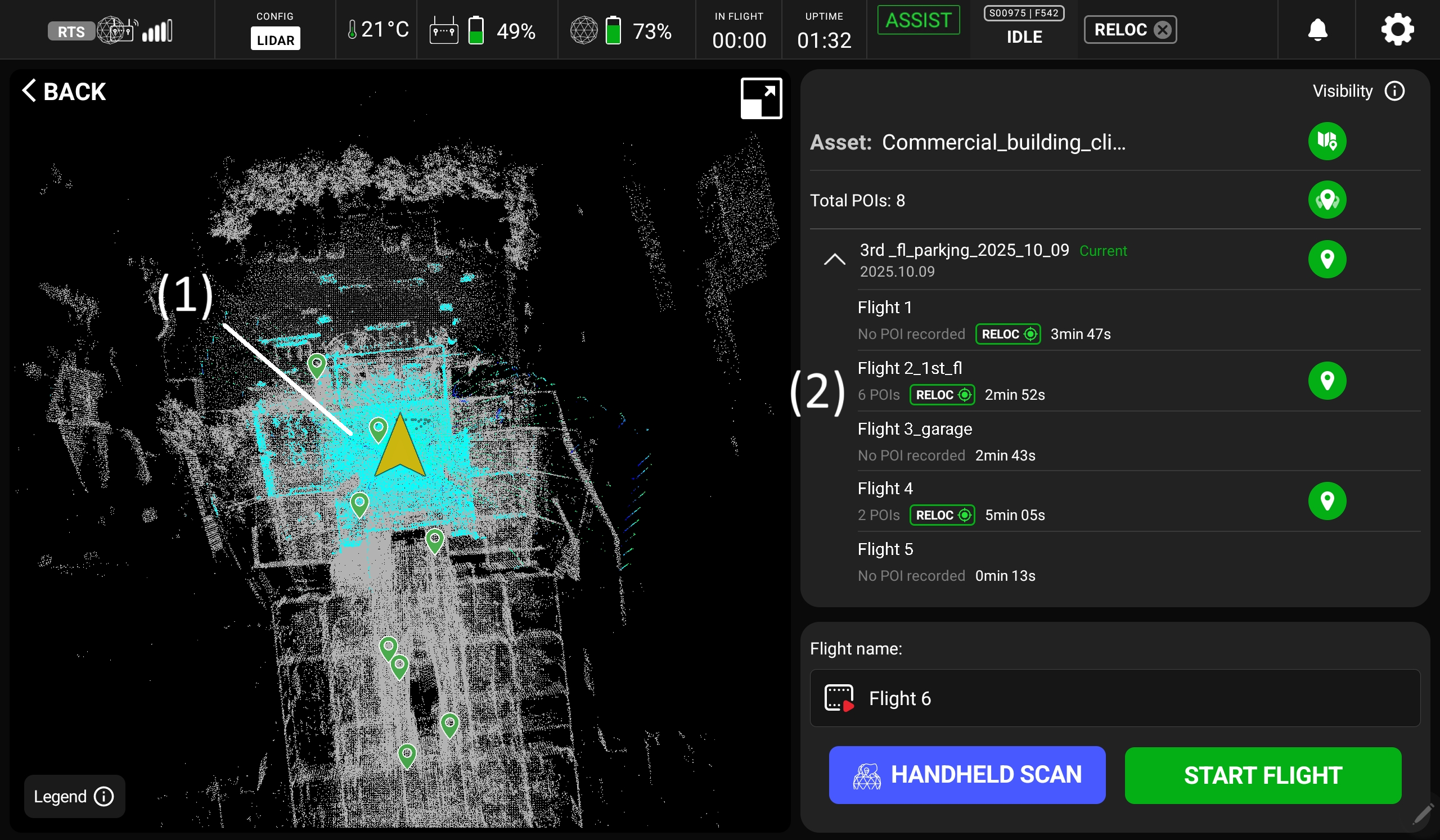
The preflight window displays information related to the asset selected. Before each flight it is possible to see a list of all the flights on the Elios 3 and their relocalization status.
### (1) Relocalization reference
The cyan points of the reference point cloud indicate the relocalization reference. The first flight of each asset automatically creates a relocalization reference for the Asset. When relocalizing additional flights, they should take off and relocalize within 1.5m/5ft of the original take off point for best results.
{% hint style="info" %}
The relocalization reference is saved and accessed at Asset level. All flights and Inspections in the asset will relocalize using the same reference.
{% endhint %}
### (2) Asset flight list
Displays a list of flights on the Elios 3 for the selected asset. Flights that have been relocalized will be indicated with a green RELOC icon. Flights where the relocalization failed, and/or was cancelled will not contain an icon.
## Create the Relocalization Reference
The relocalization reference is created automatically on the first flight for each Asset. It is important for the future success of relocalizing to choose a region with unique and permanent features, and the adequate initial scanning of it. Avoid relocalizing in very symmetrical environments.
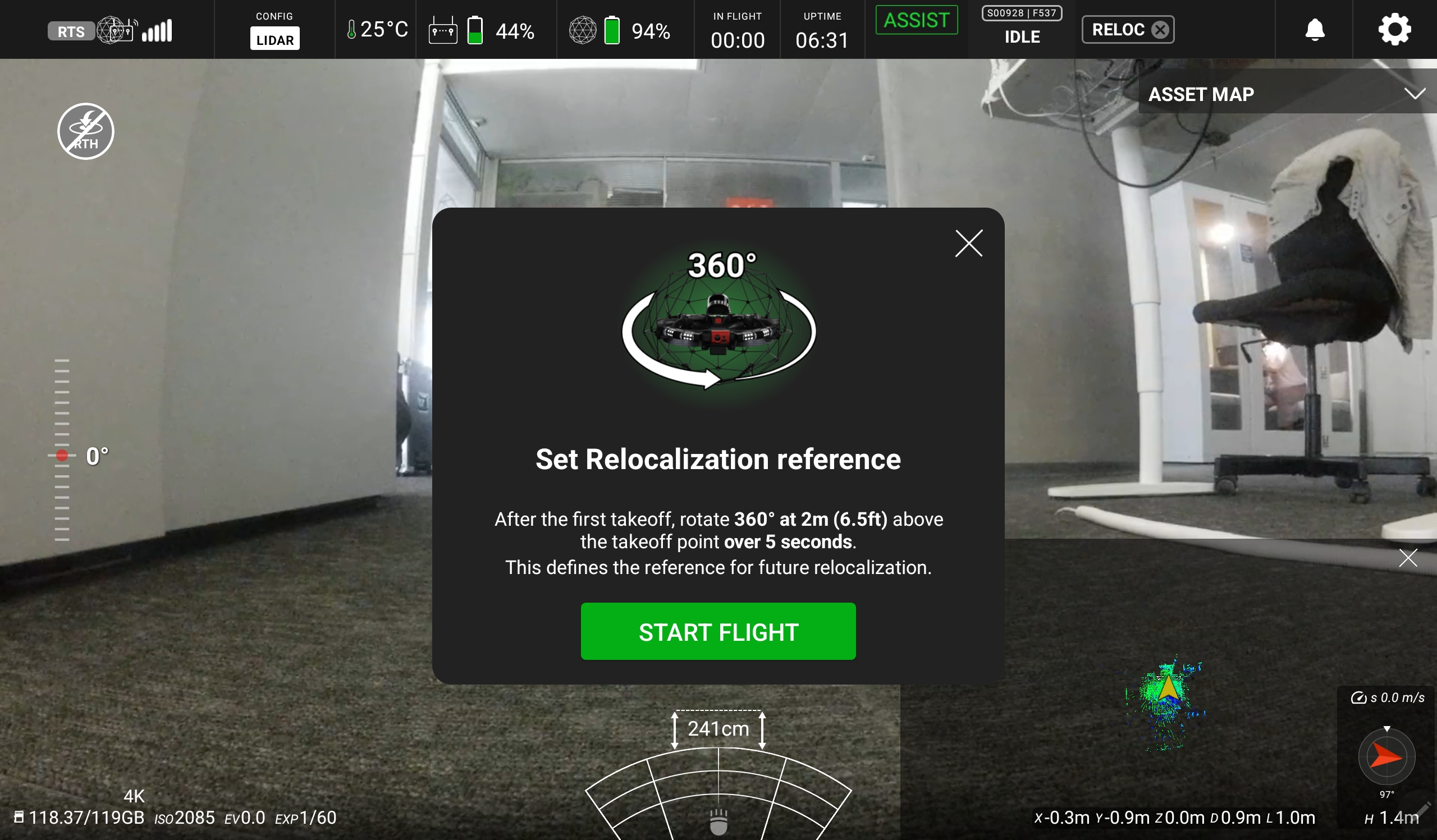
Before arming the Elios 3 on the first flight, a Set Relocalization reference alert will remind the pilot to adequately scan the takeoff area as this will define the reference for future relocalization.
Complete a slow and steady 360° circle or figure 8 2m/6.5ft above takeoff for at least 5 seconds. It is important to scan the takeoff area well. This scan will be used for all subsequent flights to relocalize off of.
Complete the flight to create the reference. A green RELOC icon will indicate success in the preflight Asset Dashboard.
{% hint style="info" %}
You must fly 3m/10ft from the original takeoff. If the 3m/10ft threshold is not crossed during the first flight in a new asset, the relocalization reference is not saved, and no relocalization procedure will be available.
{% endhint %}
## Relocalize Additional Flights
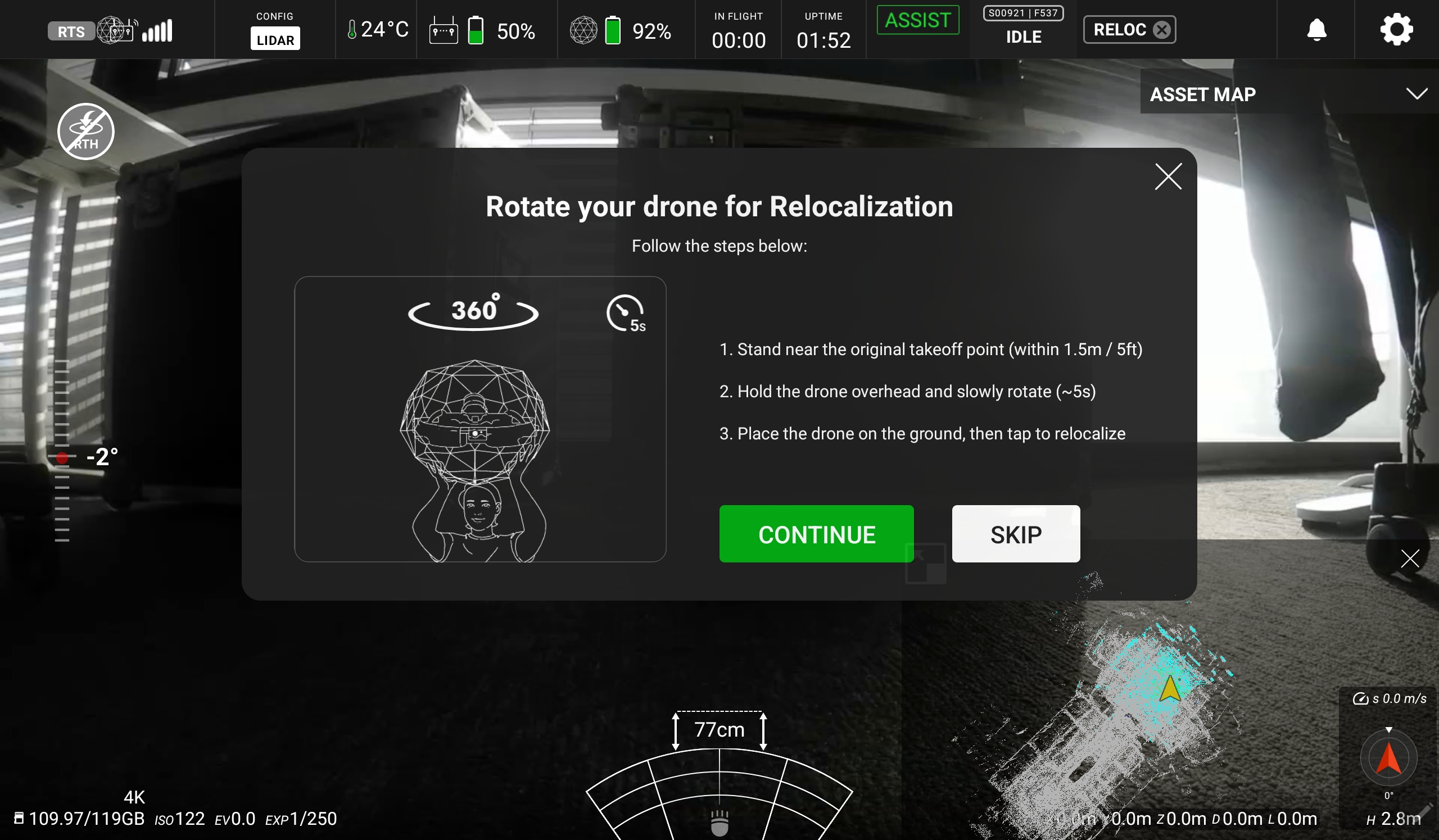
After tapping Start Flight and/or Handheld mapping for subsequent flights, follow the instructions provided in the preflight alert:
1. Stand near the original takeoff point (within 1.5m /5ft).
2. Hold the drone overhead and slowly rotate (\~5sec).
3. Place the Elios 3 on the ground, then tap Continue to relocalize.
1. A green banner will alert to a successful relocalization. Arm the drone and conduct the flight. It will be automatically aligned to the previous relocalized flights.
2. A red banner will alert the pilot to a failed relocalization. Click Retry Scan to try again, click Proceed Without to skip relocalizing.
{% hint style="info" %}
When relocalizing the drone should remain absolutely still to include excessive motion around it.
{% endhint %}
{% hint style="info" %}
If the flight is unable to relocalize it is possible to try again. Ensure the Elios 3 is being relocalized in the correct location and that there has not been a large change in the local geometry. If the flight is unable to relocalize it will be possible to manually align in Inspector 5.
{% endhint %}
## Reimport Previous Relocalization References
It is possible to reimport previous relocalization references to the Elios 3 to build upon an Inspection at a later date/time. This is done via Inspector 5.
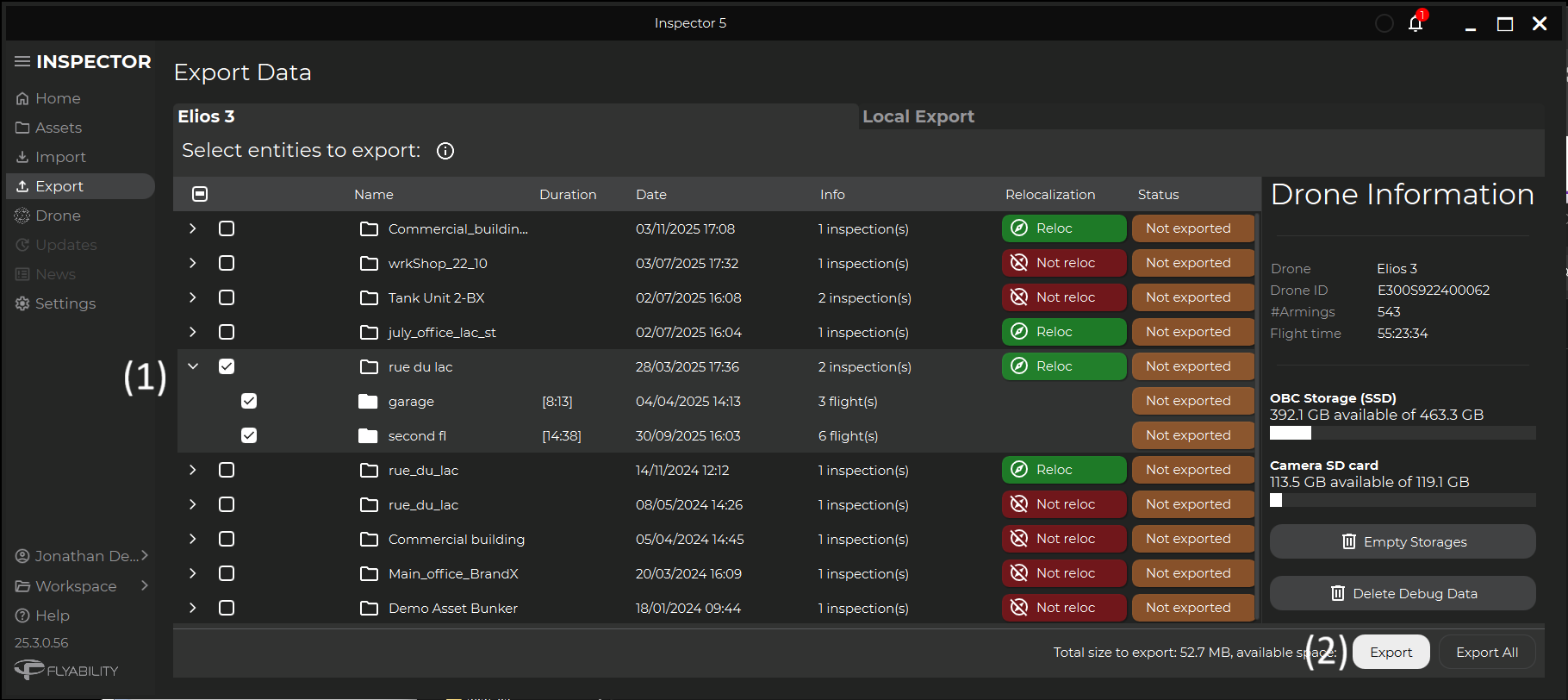
Connect the Elios 3 to Inspector 5 with the workspace containing the asset with the relocalization reference selected.
Go to the Elios 3 tab in the Export screen.
1. Select the checkbox/es of the asset/s to upload onto the drone.
2. Select Export.
{% hint style="info" %}
Only light files such as maps, trajectories, and POIs, and not heavy data such as video, image, and .mcap files are exported back onto the Elios 3. When re-importing the data, only the new flights and/or inspections can be imported into Inspector. The historical data can only be deleted from the Elios 3.
{% endhint %}
For more information: Export data - Elios 3 chapter of the [Inspector 5 User manual](https://drive.google.com/file/d/1LNksSZ4UOgZ4f7u_Ay_SuvQoOzRQdZFl/view?usp=drive_link).
---
# Agent Instructions
This documentation is published with GitBook. GitBook is the documentation platform designed so that both humans and AI agents can read, navigate, and reason over technical content effectively. Learn more at gitbook.com.
## Querying This Documentation
If you need additional information that is not directly available in this page, you can query the documentation by asking a question.
Perform an HTTP GET request on the following URL with the `ask` and `goal` query parameters:
```
GET https://knowledge.flyability.com/aircraft/elios-3/elios-3-feature-details/elios-3-how-to-relocalize.md?ask=&goal=
```
`ask` is the immediate question: it should be specific, self-contained, and written in natural language.
`goal` is what the user is ultimately trying to achieve, the reason they need the answer. Sharing it helps GitBook give you a better, more relevant answer. A goal is most helpful when it describes the outcome the user wants rather than restating the question. For example, with `ask=how do I create an API token`, a goal like `automate deployments from our CI pipeline` lets GitBook tailor the answer to that use case.
The response will contain a direct answer to the question and relevant excerpts and sources from the documentation.
Use this mechanism when the answer is not explicitly present in the current page, you need clarification or additional context, or you want to retrieve related documentation sections.