> For the complete documentation index, see [llms.txt](https://knowledge.flyability.com/llms.txt). Markdown versions of documentation pages are available by appending `.md` to page URLs; this page is available as [Markdown](https://knowledge.flyability.com/aircraft/elios-3/elios-3-feature-details/elios-3-autoscan.md).

# Elios 3 - Autoscan

Autoscan automates systematic photo coverage of flat and near-flat surfaces for the Elios 3 from the Cockp.

After defining a rectangular plane from reference snapshots taken at three corners. Autoscan builds a flat virtual plane from those points, plans a capture grid across it, and flies the grid autonomously stopping at each point to take a photo at a consistent distance and overlap.

Autoscan has two modes:

* [3D Photogrammetry](#autoscan-3d-photogrammetry-workflow) - Autonomous collection of imagery for 3D model reconstruction and or orthographic image creation.
* [Grid Inspection](#grid-inspection-workflow) - Systematic flight stopping and taking images at preset intervals along a plane.

### Prerequisites

The following are required for Autoscan.

<table data-header-hidden><thead><tr><th width="294"></th><th></th></tr></thead><tbody><tr><td>Premium Software Subscription</td><td>An active Premium Software Subscription is required.</td></tr><tr><td>Firmware version</td><td>Flight data collected from Cockpit and Elios 3 firmware versions from 2026.03</td></tr><tr><td>LiDAR payload</td><td>The Elios 3 must have a LiDAR payload equipped.</td></tr><tr><td>Inspector Desktop</td><td>Inspector Desktop for visualizing and importing data locally.</td></tr><tr><td>3rd party Photogrammetry software</td><td>Valid license for other 3rd party photogrammetry software (Pix4D, Bentley, Agisoft)</td></tr></tbody></table>

### Autoscan User Manual

{% file src="/files/nppf00gpSAmDsVmjzQlp" %}

## 3D Photogrammetry workflow

The 3D photogrammetry workflow allows for the autonomous capture of imagery suitable for photogrammetry. The pilot is able to define the capture plane, percentage of overlap between images, and resolution. The exported images and camera poses are exported in the same folder and can be used with any photogrammetry processing software.

### Settings

The Autoscan 3D photogrammetry workflow starts in Cockpit. When creating a new Autoscan flight it is important to select **FHD** as the camera recording resolution. If 4K is selected the SCAN button will be greyed out and unable to select.

With FHD selected, arm the Elios 3 and fly to the surface to be scanned. Tap the purple **SCAN** button in the Cockpit display to open the Autoscan Settings.

{% hint style="info" icon="circle-info" %}
To save time and battery, preconfigure the settings from the AUTO screen in the Cockpit Settings menu.
{% endhint %}

#### **Photogrammetry Settings Window**

Configure the Autoscan settings to suit the surface being scanned. The settings will dictate the distance to the wall, photo spacing, and the maximum coverage area. To save time and battery, preconfigure the settings from the AUTO screen in the Settings menu before flight.

{% columns %}
{% column width="41.66666666666667%" %}

<div align="left"><figure><img src="https://3798671238-files.gitbook.io/~/files/v0/b/gitbook-x-prod.appspot.com/o/spaces%2FEUlQdNranSJ0ddu4qSxa%2Fuploads%2FbUHDt2G6exiUTcLUgLE5%2FAuto_scan_photogrammetry_settings.png?alt=media&amp;token=bd55d8e7-60cc-4f8c-b268-6ab592e1192a" alt=""><figcaption></figcaption></figure></div>
{% endcolumn %}

{% column width="58.33333333333333%" %}
**(1)** Scan name - Enter a name for the scan.

**(2)** Scan type - Select 3D Photogrammetry.

**(3)** Target overlap - Set the amount of overlap between images. Higher overlap improves 3D quality, and increases flight time.

**(4)** Target resolution (GSD) - Set the resolution in pixels per mm. The resolution (GSD) defines the distance the camera needs to be from the surface.&#x20;

Ground Sampling Distance(GSD) - how much actual space one pixel in a photo covers. E.g. 1 pixel covers 2mm of ground distance.
{% endcolumn %}
{% endcolumns %}

**(5)** Settings/Configuration Reference - The plane dimensions change in reference to the settings selected.&#x20;

**(6)** Tap the **DEFINE SURFACE** button when all settings have been selected.

### Set the capture plane

After tapping the DEFINE SURFACE button, the pilot will be prompted to define 3 corners of the capture plane.

{% hint style="warning" %}
**Important:** Define the longest side with the first two steps(POIs), and the shorter side with the 3rd POI
{% endhint %}

<figure><img src="https://3798671238-files.gitbook.io/~/files/v0/b/gitbook-x-prod.appspot.com/o/spaces%2FEUlQdNranSJ0ddu4qSxa%2Fuploads%2FuDiSA7BfMPkHNv5Y5OUq%2FPlane_step_one.png?alt=media&amp;token=9c3b3541-b1ff-4978-9555-b0921095bbbd" alt=""><figcaption></figcaption></figure>

Each step has its own **(1)** pop up window with **(2ab)** color coded distance to surface assistance. Each of the 3 corners are to be defined with a POI. **(3)** Settings are listed for reference and accessible for change as needed.

#### How to set the capture plane:

{% columns %}
{% column width="50%" %}

<div align="left"><figure><img src="https://3798671238-files.gitbook.io/~/files/v0/b/gitbook-x-prod.appspot.com/o/spaces%2FEUlQdNranSJ0ddu4qSxa%2Fuploads%2F4UV3wwZgEnosT3dXfQus%2FStep_one_setting_plane_popup.png?alt=media&amp;token=5c08d405-1b31-4ac5-8231-e4aea1680ce8" alt=""><figcaption></figcaption></figure></div>
{% endcolumn %}

{% column width="50%" %}
**Step 1** - Fly to the first corner. Pilot the drone to the appropriate distance. Color coded guidance is provided to assist with the correct distance from the surface. Once at the correct distance, press the POI button on the RC. The origin has been set.
{% endcolumn %}
{% endcolumns %}

{% columns %}
{% column %}

<div align="left"><figure><img src="https://3798671238-files.gitbook.io/~/files/v0/b/gitbook-x-prod.appspot.com/o/spaces%2FEUlQdNranSJ0ddu4qSxa%2Fuploads%2FMGdnZP2l9aMBeXRsZiKf%2FStep_2_setting_plane_popup.png?alt=media&amp;token=238b9e0f-ff00-46f5-8f19-67d0db37ead0" alt="" width="375"><figcaption></figcaption></figure></div>
{% endcolumn %}

{% column %}
**Step 2** - Fly to the next corner along the longest side of the plane. Pilot the drone to the appropriate distance. Once at the correct distance, press the POI button on the RC. The first side has been set. Tap UNDO to go back a step.
{% endcolumn %}
{% endcolumns %}

{% columns %}
{% column width="50%" %}

<div align="left"><figure><img src="https://3798671238-files.gitbook.io/~/files/v0/b/gitbook-x-prod.appspot.com/o/spaces%2FEUlQdNranSJ0ddu4qSxa%2Fuploads%2FlmynuH5IElAyRF29ikXN%2FStep_3_set_plane_popup.png?alt=media&amp;token=cfdb357c-607b-4095-8161-1d5d5c00e6be" alt="" width="375"><figcaption></figcaption></figure></div>
{% endcolumn %}

{% column width="50%" %}
**Step 3** - Fly perpendicular to the 3rd corner to set side 2. Once in position, press the POI button. Tap UNDO to go back a step.

The window displays further information to include the number of photos covering side 1, as well as the Estimated scan time.
{% endcolumn %}
{% endcolumns %}

{% hint style="info" %}
**Estimated Scan Time** - The white bar shows the remaining battery level. A green tick indicates the estimated Autoscan completion. A red tick indicates the estimated completion falls outside of the remaining battery level.
{% endhint %}

{% columns %}
{% column %}

<div align="left"><figure><img src="https://3798671238-files.gitbook.io/~/files/v0/b/gitbook-x-prod.appspot.com/o/spaces%2FEUlQdNranSJ0ddu4qSxa%2Fuploads%2F2g1yzh5Du7UzbSmmOtPb%2FAutoscan_ready_popup.png?alt=media&amp;token=97ec6bd2-9046-43f1-a9ef-eeee9b0fcaa1" alt="" width="375"><figcaption></figcaption></figure></div>
{% endcolumn %}

{% column %}
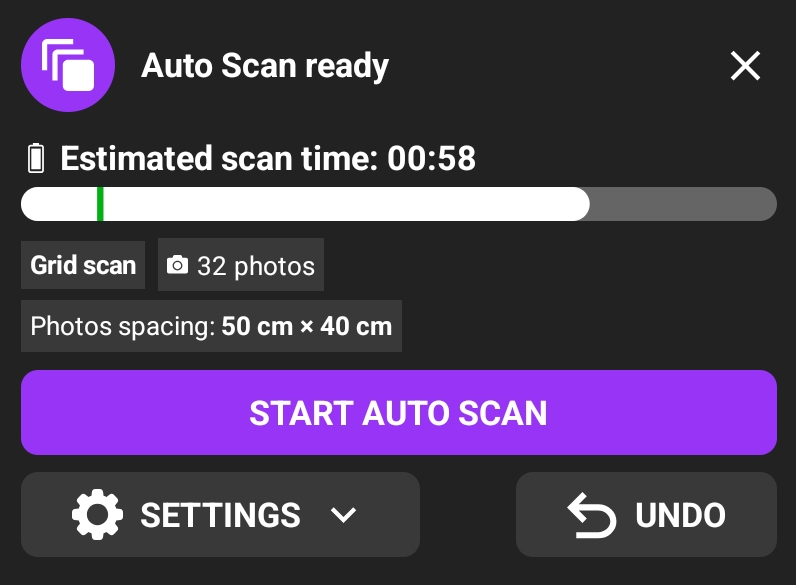
**Step 4** - After the 3rd corner has been set, the final popup indicates the plane is set, and ready to start Autoscan.

Updated information is displayed to include the total number of photos, mode, and scan time estimate.

Tap the **START AUTO SCAN** button to start the scan.
{% endcolumn %}
{% endcolumns %}

### Photogrammetry Capture

The pilot remains in control throughout an Autoscan flight. Start, stop, restart, pause, exit, and manual takeover are available at any time. Obstacle avoidance stays active, and any capture point the drone cannot reach is skipped.

<figure><img src="https://3798671238-files.gitbook.io/~/files/v0/b/gitbook-x-prod.appspot.com/o/spaces%2FEUlQdNranSJ0ddu4qSxa%2Fuploads%2Fre2WWbhdcRQJV7aFxeEo%2FAutoscan_capturing.png?alt=media&amp;token=6ec8a7b7-5cc8-4346-adc3-2288dac4401e" alt=""><figcaption></figcaption></figure>

**(1)** A Scanning surface alert indicates the scan is in process. It is possible to pause/resume/stop the scan by tapping the button. It also indicates the percentage of completion, time remaining, and photos taken and/or skipped.

**(2)** The 3D window shows the plane outlined in white with a purple autonomous pathway. Purple dots represent where the autoscan feature took photos.

When the scan is complete the  Elios 3 hovers in place, while the pilot is alerted to take over piloting the Elios 3 to the landing point.

### Export - Photogrammetry

With the capture complete, the flight data will have to be imported into Inspector 5 for retrieval of the images and camera pose information.

Refer to the [Inspector 5 User manual](/software/inspector/inspector-5.md#documentation) for importing flights into Inspector 5. Once imported navigate to the Autoscan flight for review

<figure><img src="https://3798671238-files.gitbook.io/~/files/v0/b/gitbook-x-prod.appspot.com/o/spaces%2FEUlQdNranSJ0ddu4qSxa%2Fuploads%2FvHctippfSOylLLNjmx2P%2Fautoscan%20_inspector_5_export_menu_view.png?alt=media&amp;token=eafc5304-04a5-4102-976d-369365f8a3ca" alt=""><figcaption></figcaption></figure>

**(1)** Green POIs represent the three images setting the capture plane.

**(2)** Purple dots represent the Autoscan captures.

#### **Export for photogrammetry**

Inspector 5 exports the images along with the camera poses. To export, click the **(3)** simple export icon.

From the simple export menu select:&#x20;

* **(4)** Photogrammetry tab.
* **(5)** From POIs / Scan.
* **(6)** Scan/s to export.
* **(7)** Review what is selected for export.
* **(8)** Project template:

{% columns %}
{% column %}

* PIX4D Mapper
* PIX4D Matic
* Other
  {% endcolumn %}

{% column %}

* Agisoft Metashape
* Bentley iTwin
  {% endcolumn %}
  {% endcolumns %}

Click the **(9) Export POIs** button to export. Create or select a folder to export the files to. A pose.csv and .jpg image files are provided for the selected template.

## Grid Inspection Workflow

For visual coverage at regular intervals across a plane.

### Settings

The Autoscan Grid inspection workflow starts in Cockpit. When creating a new Autoscan flight it is important to select FHD as the camera recording resolution. If 4K is selected the SCAN button will be greyed out and unable to select.

With FHD selected, arm the Elios 3 and fly to the surface to be scanned. Tap the SCAN button in the Cockpit display to open the Auto-Scan Settings.

{% hint style="info" %}
To save time and battery, preconfigure the settings from the AUTO screen in the Settings menu.
{% endhint %}

#### **Grid Inspection Settings Window**

Configure the Autoscan settings to suit the surface being scanned.

{% columns %}
{% column width="50%" %}
**(1)** Scan type - Select Grid Inspection.

**(2)** Calculation Method - There are two methods:

**(2a)** By Photo Count - Select the number of photos needed along each side. Autoscan will arrange the spacing evenly across both.

**(2b)** By Distance - Select the spacing between photos along each side. Autoscan will take the images at the specified spacing.

The total number of photos for the flight is listed for review.

**(3)** Tap the APPLY SETTINGS button to save the settings.
{% endcolumn %}

{% column width="50%" %}

<figure><img src="https://3798671238-files.gitbook.io/~/files/v0/b/gitbook-x-prod.appspot.com/o/spaces%2FEUlQdNranSJ0ddu4qSxa%2Fuploads%2FbQ0BJM3CRtxcg3HMKmo7%2Fgrid_settings_combined.png?alt=media&amp;token=30c50022-8f7b-4f78-b1a6-d851a91f87e3" alt=""><figcaption></figcaption></figure>
{% endcolumn %}
{% endcolumns %}

### Set the capture plane

After tapping the APPLY SETTINGS button, the pilot will be prompted to define 3 corners of the capture plane.

{% hint style="warning" %}
**Important:** Define the longest side with the first two steps(POIs), and the shorter side with the 3rd POI
{% endhint %}

{% columns %}
{% column width="50%" %}
**Step 1** - Fly to the first corner. Once framed as needed, press the POI button on the RC. The origin has been set.
{% endcolumn %}

{% column width="50%" %}

<figure><img src="https://3798671238-files.gitbook.io/~/files/v0/b/gitbook-x-prod.appspot.com/o/spaces%2FEUlQdNranSJ0ddu4qSxa%2Fuploads%2FBitpgk861rxrjhtqLHFF%2FStep_one_grid.png?alt=media&amp;token=2071f66a-3b6f-4bcd-a229-12390bec5c8c" alt=""><figcaption></figcaption></figure>
{% endcolumn %}
{% endcolumns %}

{% columns %}
{% column %}
**Step 2** - Fly to the next corner along the longest side of the plane. Pilot the drone to the appropriate position, and press the POI button on the RC. The first side has been set. Tap UNDO to go back a step if needed.
{% endcolumn %}

{% column %}

<figure><img src="https://3798671238-files.gitbook.io/~/files/v0/b/gitbook-x-prod.appspot.com/o/spaces%2FEUlQdNranSJ0ddu4qSxa%2Fuploads%2FO1FOowg75y3A4FLEOD8t%2FStep_2_setting_plane_grid.png?alt=media&amp;token=3c71286d-d439-4a1d-a847-8033dd05efb2" alt=""><figcaption></figcaption></figure>
{% endcolumn %}
{% endcolumns %}

{% columns %}
{% column %}
**Step 3** - Fly perpendicular to the 3rd corner to set side 2. Once in position, press the POI button.

The Step 3 window displays further information to include the number of photos covering side one, and the estimated scan time.
{% endcolumn %}

{% column %}

<figure><img src="https://3798671238-files.gitbook.io/~/files/v0/b/gitbook-x-prod.appspot.com/o/spaces%2FEUlQdNranSJ0ddu4qSxa%2Fuploads%2FqtWvjmxNesj1mQ5CDPWz%2FStep_3_set_plane_grid.png?alt=media&amp;token=2ad30d0f-6440-4538-9d5f-0f7b0d0b7077" alt=""><figcaption></figcaption></figure>
{% endcolumn %}
{% endcolumns %}

{% hint style="info" %}
Estimated Scan Time - The white bar shows the remaining battery level. A green tick indicates the estimated Autoscan completion. A red tick indicates the estimated completion falls outside of the remaining battery level.
{% endhint %}

{% columns %}
{% column %}
**Step 4** - After the 3rd corner has been set, the final popup indicates the plane is ready to start Autoscan.

Updated information is displayed to include the total number of photos, the mode, and scan time estimate.

Tap the **START AUTO SCAN** button to start the scan
{% endcolumn %}

{% column %}

<figure><img src="https://3798671238-files.gitbook.io/~/files/v0/b/gitbook-x-prod.appspot.com/o/spaces%2FEUlQdNranSJ0ddu4qSxa%2Fuploads%2FAdXvttUWq52w8sNLN1DN%2FAutoscan_ready_grid.png?alt=media&amp;token=3d4886f5-a848-4ef4-a092-45b394b9bca5" alt=""><figcaption></figcaption></figure>
{% endcolumn %}
{% endcolumns %}

### Grid Inspection Capture

The pilot remains in control throughout an Autoscan flight. Start, stop, restart, pause, exit, and manual takeover are available at any time. Obstacle avoidance stays active, and any capture point the drone cannot reach is skipped.

<figure><img src="https://3798671238-files.gitbook.io/~/files/v0/b/gitbook-x-prod.appspot.com/o/spaces%2FEUlQdNranSJ0ddu4qSxa%2Fuploads%2FkxyItFvokT2HsHMNSyQv%2FAutoscan_capturing_grid.png?alt=media&amp;token=feaf017b-8984-492c-864d-f9b45dad7c19" alt=""><figcaption></figcaption></figure>

**(1)** A Scanning surface alert indicates the scan is in process. It is possible to pause/resume/stop the scan by tapping the button. It also indicates the percentage of completion, time remaining, and photos taken and/or skipped.

**(2)** The 3D window shows the plane outlined in white with a purple autonomous pathway. Purple dots represent where the autoscan feature took photos.

When the scan is complete the  Elios 3 hovers in place, while the pilot is alerted, to take over piloting the Elios 3 to the landing point

### Export - Grid Inspection

With the capture complete, the flight data will have to be imported into Inspector 5 for retrieval of the images and camera pose information.

Refer to the [Inspector 5 User manual](https://knowledge.flyability.com/software/inspector/inspector-5#documentation) for importing flights into Inspector 5. Once imported, navigate to the Grid Inspection flight for review.

<figure><img src="https://3798671238-files.gitbook.io/~/files/v0/b/gitbook-x-prod.appspot.com/o/spaces%2FEUlQdNranSJ0ddu4qSxa%2Fuploads%2FCJVNTKDvpGurJNUiPKKs%2Fautoscan%20_inspector_grid_export.png?alt=media&amp;token=710a5cea-e93d-4945-8be9-5d3a483b6076" alt=""><figcaption></figcaption></figure>

**(1)** Green frames represent the three images setting the capture plane.

**(2)** Purple dots represent the Autoscan captures.

**Export images**

Inspector 5 exports the images along with the camera poses and or annotations. To export, click the **(3)** simple export icon.

From the simple export menu select:&#x20;

* **(4)** Flights tab.
* **(5)** Select the flight/s.
* **(6)** Select the checkbox/es for the data type.
  * Export snapshots after editing using the POI tab.
  * Export the RAW snapshots and pose.

Click the **(7)** **Export** button to export. Create or select a folder to export the files to.&#x20;

## Resources

{% file src="/files/cpcCEGRcTRoDNUA0R2YH" %}

{% file src="/files/8ccGsPHunmvEjeIoa20w" %}


---

# Agent Instructions
This documentation is published with GitBook. GitBook is the documentation platform designed so that both humans and AI agents can read, navigate, and reason over technical content effectively. Learn more at gitbook.com.

## Querying This Documentation
If you need additional information that is not directly available in this page, you can query the documentation by asking a question.

Perform an HTTP GET request on the following URL with the `ask` and `goal` query parameters:

```
GET https://knowledge.flyability.com/aircraft/elios-3/elios-3-feature-details/elios-3-autoscan.md?ask=<question>&goal=<user_goal>
```

`ask` is the immediate question: it should be specific, self-contained, and written in natural language.
`goal` is what the user is ultimately trying to achieve, the reason they need the answer. Sharing it helps GitBook give you a better, more relevant answer. A goal is most helpful when it describes the outcome the user wants rather than restating the question. For example, with `ask=how do I create an API token`, a goal like `automate deployments from our CI pipeline` lets GitBook tailor the answer to that use case.

The response will contain a direct answer to the question and relevant excerpts and sources from the documentation.

Use this mechanism when the answer is not explicitly present in the current page, you need clarification or additional context, or you want to retrieve related documentation sections.